RK Cosmos App Not Working: Connection Errors, Crashes, and Fixes
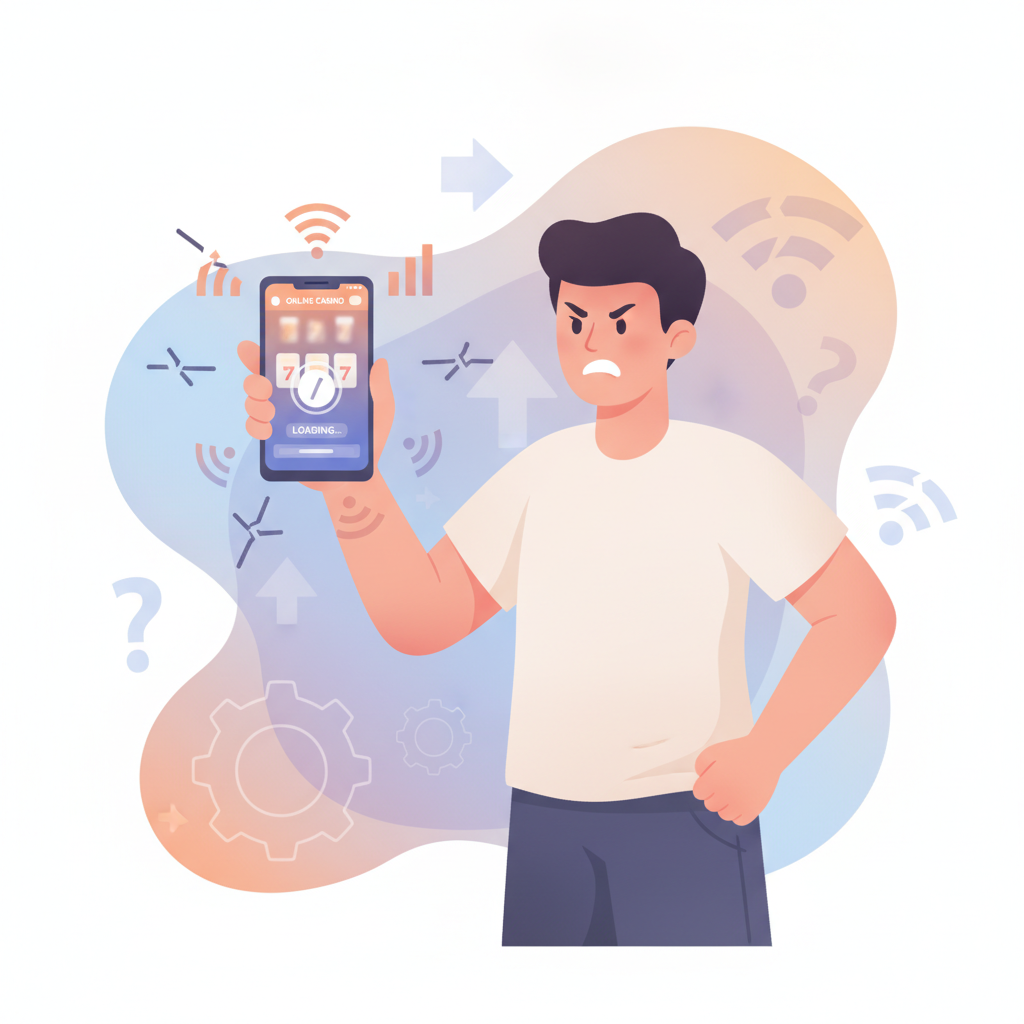
RK Cosmos App Not Working: Connection Errors, Crashes, and Fixes
When the RK Cosmos app refuses to open, crashes during a bet, or shows connection errors even though your data is working fine, it disrupts your game time and delays withdrawals. This guide walks through the most common Android and iOS app problems RK Cosmos players face in the Philippines, plus step-by-step fixes you can try before switching to the mobile browser.
This page is for players 21 and over only. If you feel your play is becoming a problem, set deposit limits in your account or take a break.
Common Android and iOS App Problems
App Won't Load Past the Splash Screen
You tap the RK Cosmos icon, see the logo, then nothing—the app sits on a white or black screen without reaching the login page. This often happens after a phone OS update or when the app cache becomes corrupted.
Crashes Immediately on Launch
The app opens for a second, then closes itself and drops you back to your home screen. This is common on older Android devices running Android 7 or 8, or iPhones with iOS 13 or earlier, especially if the RK Cosmos app version requires a newer operating system.
Freezes During Game Loading or Bets
You tap a slot game or live dealer table, the screen freezes, and nothing responds—you can't back out or place a bet. Sometimes the app unfreezes after 30 seconds; other times you have to force-close it. This usually points to a slow internet connection, insufficient phone memory, or an outdated app version.
Login Loop or Blank Home Screen
You enter your RK Cosmos username and password, the app seems to accept them, but then either loops back to the login page or shows a blank home screen with no games, balance, or menu. This can be caused by server-side maintenance, a temporary account flag, or corrupted session data in the app.
How to Clear Cache, Reinstall APK, or Update the App Version
Clear App Cache and Data on Android
Clearing cache removes temporary files that can cause freezing or loading errors without deleting your login credentials (though you may need to log in again).
- Open Settings on your Android phone.
- Tap Apps or Application Manager.
- Scroll down and tap RK Cosmos.
- Tap Storage, then tap Clear Cache.
- If the problem continues, tap Clear Data (this logs you out, so have your password ready).
- Restart your phone, then open the RK Cosmos app and log in again.
Reinstall the APK on Android
If clearing cache doesn't help, a full reinstall often fixes corrupt files. RK Cosmos distributes its Android app as an APK file, not through Google Play, so you need to download it again from the official RK Cosmos site.
- Open Settings > Apps > RK Cosmos and tap Uninstall.
- Open your mobile browser (Chrome, Firefox, or Samsung Internet) and go to the official RK Cosmos website.
- Tap the Download App or Android APK button.
- If your phone asks, allow installation from unknown sources in Settings > Security.
- Open the downloaded APK file and tap Install.
- Once installed, open RK Cosmos and log in.
Tip: Always download the APK directly from RK Cosmos or a link provided by their official social media. Third-party APK mirror sites may host outdated or tampered files.
Update the App Version
RK Cosmos releases new app versions to fix bugs and improve stability. If you installed the APK weeks or months ago, you may be running an outdated build.
For Android:
The RK Cosmos app won't auto-update like a Play Store app. Visit the RK Cosmos site on your phone, check the version number in the download section, and compare it to the version shown in your installed app (usually found in Settings > About within the app). If the site version is newer, download and install the updated APK over the old one—you won't lose your login.
For iOS:
RK Cosmos on iPhone and iPad is typically installed via a web-based profile or TestFlight link. If you see an update prompt inside the app or TestFlight, tap Update. If the app isn't offered through the official App Store, you may need to delete the profile and reinstall from the link RK Cosmos provides.
Fixing 'No Internet Connection' Errors When Your Data Is Working
You have full signal bars or Wi-Fi, other apps load fine, but RK Cosmos shows "No internet connection" or "Unable to reach server." This error usually stems from DNS issues, firewall blocks, or the app trying to reach a server that's temporarily down.
Switch Between Mobile Data and Wi-Fi
Sometimes one network works while the other doesn't. If you're on Wi-Fi, toggle it off and use mobile data. If you're on data, connect to a Wi-Fi network. If the app loads on one but not the other, the problem is likely a network-level block or routing issue.
Restart Your Phone and Router
A simple restart clears stuck network settings. Turn off your phone completely, wait ten seconds, and power it back on. If you're using home Wi-Fi, unplug your router for ten seconds, then plug it back in and wait for the connection to stabilize before opening RK Cosmos.
Check If RK Cosmos Is Down
Visit the RK Cosmos Facebook page or Telegram group (if you're a member) to see if other players are reporting downtime. Scheduled maintenance or unexpected server issues can cause the app to refuse connections even when your internet is fine. If the platform is down, you'll need to wait until RK Cosmos resolves it—usually within an hour or two.
Try a VPN (Carefully)
Some Philippine ISPs or workplace Wi-Fi networks block gambling domains. If you suspect your connection is being filtered, a VPN can route your traffic through a different server. Install a reputable VPN app (ProtonVPN, Windscribe, or similar), connect to a Philippine server, then open RK Cosmos. Important: Check RK Cosmos terms to confirm VPN use is allowed. Most Filipino-focused platforms permit it, but using a foreign VPN server to disguise your location may violate rules.
When to Use the Mobile Browser Site Instead of the App
The RK Cosmos mobile website offers nearly the same features as the app—slots, live dealer, sports betting, deposits via GCash and Maya, and withdrawals. If the app keeps crashing or your phone doesn't support the latest APK, the browser version is a reliable fallback.
Advantages of the Mobile Browser
- No installation required: Open any browser and go to the RK Cosmos site.
- Always up to date: You load the latest version every time; no APK downloads.
- Works on older phones: The mobile site runs on devices that can't install the APK.
- Less storage: No app file sitting in your phone memory.
When to Stick With the App
- Faster load times: The app caches assets, so games often open quicker.
- Push notifications: The APK can alert you to deposit confirmations, withdrawal approvals, and promo updates.
- One-tap access: An icon on your home screen is more convenient than bookmarking and opening a browser.
If you're having repeated app issues and need to place a bet or cash out right away, switch to the browser. You can troubleshoot the app later when you have more time.
Responsible Gambling: 21+ Only
RK Cosmos is intended for players aged 21 and over. Online casino games and sports betting carry financial risk. Set a budget before you play, never chase losses, and use the deposit limit and self-exclusion tools in your account if you need a break. If gambling is affecting your life, seek help through the National Center for Mental Health or speak to a trusted friend or family member.
Final Checklist: Fixing RK Cosmos App Problems
- Clear cache in Android settings or reinstall the app profile on iOS.
- Reinstall the APK from the official RK Cosmos site if crashes continue.
- Check for app updates by visiting the RK Cosmos download page.
- Switch networks—toggle between mobile data and Wi-Fi.
- Restart your phone and router to reset network settings.
- Confirm RK Cosmos is online by checking official social channels.
- Use the mobile browser as a backup if the app won't stabilize.
Most connection errors, crashes, and freezes resolve with a cache clear or APK reinstall. If none of these steps work and the mobile browser site loads fine, contact RK Cosmos player support through live chat or Telegram and describe the issue—include your phone model, Android or iOS version, and app version number so they can investigate further.